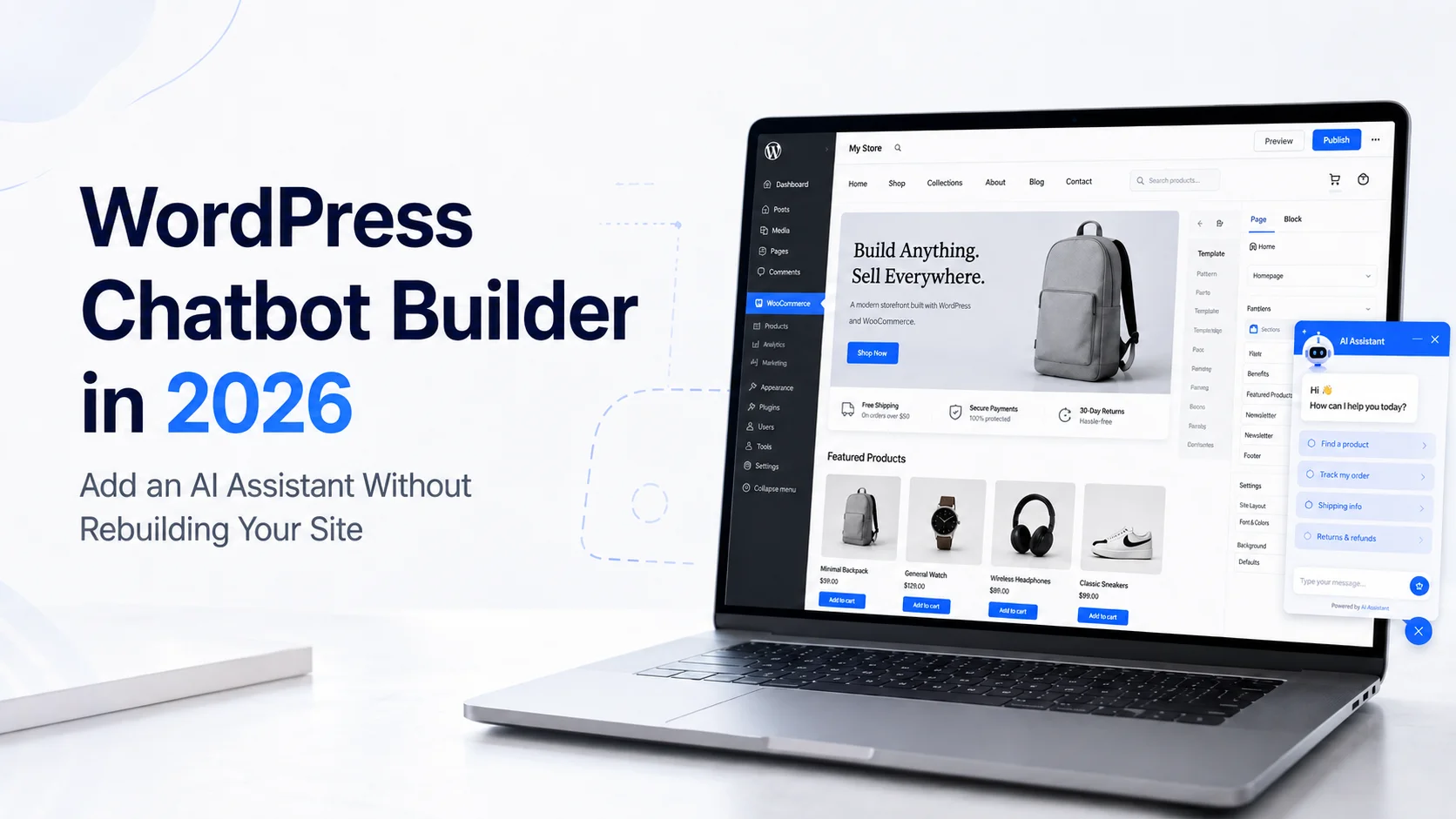
A WordPress chatbot builder can turn that existing information into a conversational AI assistant. Visitors can ask questions directly, while the chatbot uses your business knowledge to provide relevant answers, guide them to useful pages or transfer the conversation to your team. The best part is that you usually do not need to rebuild your WordPress website or develop an AI system from scratch.
What Is a WordPress Chatbot Builder?
A WordPress chatbot builder is a tool that helps you create and add a chatbot to a WordPress website. Older chatbots mostly depended on fixed buttons and scripted conversation flows. Modern AI chatbots can understand naturally written questions and respond using website content, FAQs, documents and other approved knowledge.
For example, instead of clicking through several menus, a visitor might simply ask: “Which of your services would suit a small ecommerce business?” The AI chatbot can use the business information available to it and provide a relevant answer. A WordPress chatbot can therefore support customer service, lead generation, website navigation, product guidance and pre-sales conversations depending on how it is configured.
How Does an AI Chatbot Work With WordPress?
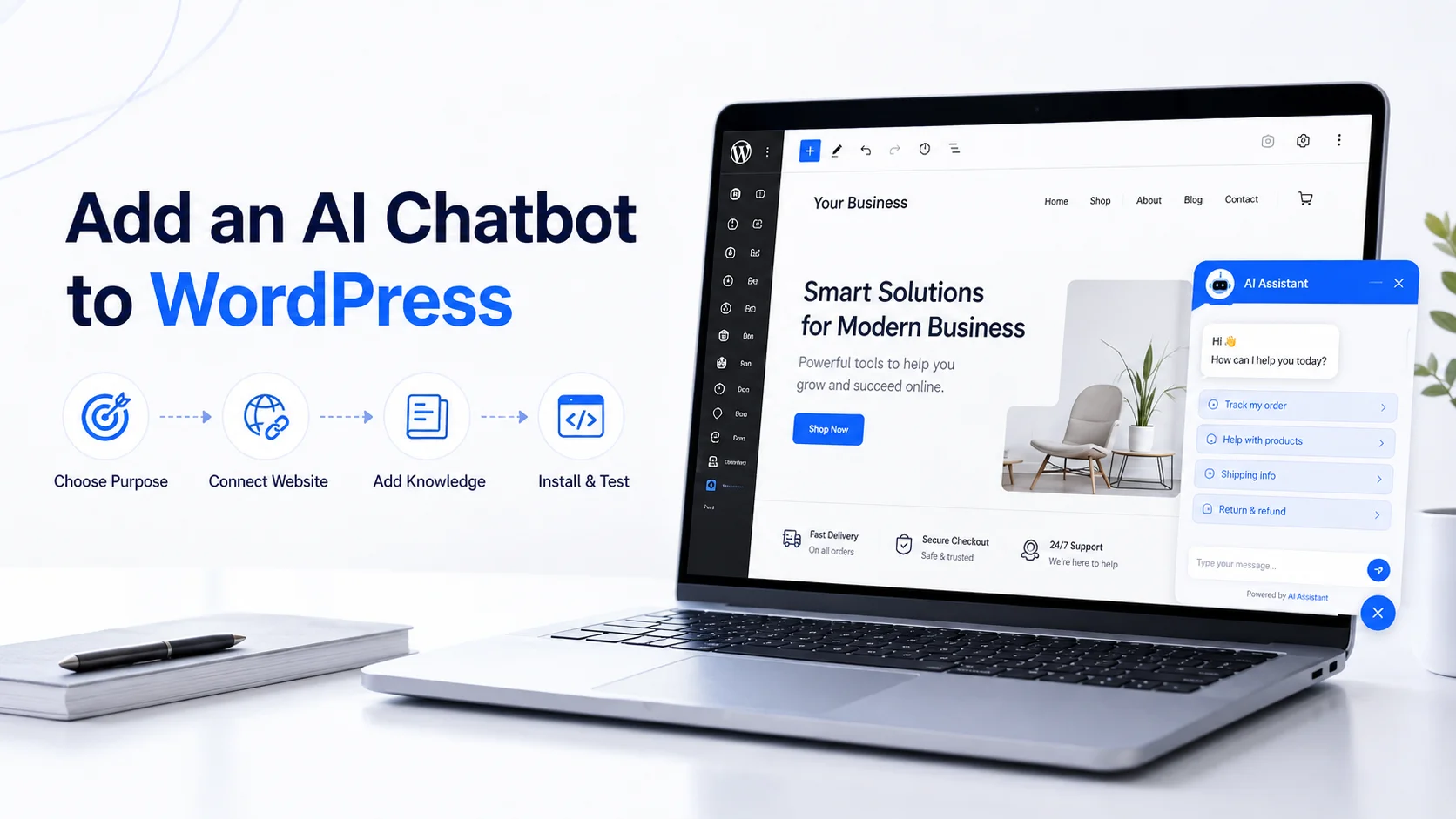
The chatbot itself does not need to be built inside WordPress. A typical setup starts with an AI chatbot platform. You connect your WordPress website or provide its URL, add any additional knowledge and configure how the chatbot should respond.
The chatbot platform processes the business information so it can use that content during conversations. When a website visitor asks a question, the chatbot interprets the message, searches the available knowledge and provides an answer based on relevant information.
For example, a customer might ask: “Do you offer refunds after 30 days?” Instead of providing a generic answer about refund policies, the chatbot should use the actual policy available on your website. After the chatbot has been trained and tested, it is connected to WordPress through a supported plugin, widget or embed method.
What Information Can a WordPress Chatbot Learn?
The quality of the chatbot depends heavily on the quality of the information you provide. A business may train its chatbot using:
Service and product pages
FAQs
Pricing information
Shipping and return policies
Blog or help-centre content
Manuals and support guides
PDFs and uploaded documents
Before training the chatbot, review this information carefully. If one WordPress page shows an old price while another shows the current price, the AI may receive conflicting information. The same issue can happen with return periods, service conditions or product specifications. A chatbot makes your content easier to access, but it cannot automatically fix inaccurate source information.
How to Add an AI Chatbot to WordPress
The exact setup depends on the chatbot platform, but the process is usually straightforward.
Step 1: Decide What the Chatbot Should Do
Start with one clear purpose. You may want the chatbot to answer common questions, support customers outside business hours, capture leads, explain services or assist ecommerce shoppers.
For example, a service business may want help with pricing and consultations, while an online store may focus on products, shipping and returns. Starting with a focused purpose makes the chatbot easier to train and test.
Step 2: Choose a WordPress Chatbot Builder
Choose a platform that supports WordPress and provides the capabilities your business actually needs. Useful features may include website crawling, document uploads, natural conversations, human handoff, lead capture, analytics, multilingual support and knowledge updates.
Do not choose a platform simply because it has the longest feature list. The important question is whether it can accurately answer the questions your WordPress visitors actually ask.
Step 3: Connect Your WordPress Website
Many AI chatbot platforms allow you to provide your website URL so the system can learn from public website content. This may include services, products, FAQs, policies, pricing pages and support information.
Agent Best AI, for example, supports WordPress websites and is designed to learn from website content before the AI agent is deployed. Its current Features page specifically lists WordPress as a supported CMS integration. Review the pages being used before training so outdated or unnecessary content does not become part of the chatbot's knowledge.
Step 4: Add Extra Business Knowledge
Your website may not contain everything customers need. You can improve the chatbot by adding FAQs, PDFs, manuals, pricing documents, policies or support guides where the selected platform supports these knowledge sources.
This is useful when detailed information exists internally or in documents that are not published as separate WordPress pages. Only add information that the chatbot is allowed to use with visitors.
Step 5: Configure How the Chatbot Responds
Set clear instructions for the AI before publishing it. You might tell the chatbot to answer from approved business information, keep responses concise, ask follow-up questions when necessary and offer human help when it cannot confirm an answer.
You should also define what it must not do. For example, it should not invent discounts, delivery promises, prices or service guarantees. The goal is not to make the chatbot answer every question. The goal is to make its answers reliable.
Step 6: Install the Chatbot on WordPress
There are generally two common ways a chatbot can be added to WordPress.
Plugin-based installation: If the provider offers a WordPress plugin, it can typically be installed through the WordPress Plugins area. WordPress officially supports installation through its built-in plugin installer, ZIP upload or manual installation.
Widget or script installation: Some chatbot platforms provide an embed or widget script that can be connected to the WordPress front end.
For custom development, WordPress recommends adding JavaScript through its enqueue system rather than hardcoding scripts directly into theme templates. For a non-technical business user, the platform's supported installation method is usually the simplest choice.
Step 7: Customize the Chat Widget
The chatbot should fit naturally into the website. Depending on the platform, you may be able to adjust the logo, chatbot name, welcome message, position and other visual settings. Keep the welcome message useful.
Instead of: “Hello! How can I help?” a service website might use: “Need help with our services, pricing or process? Ask me.” A WooCommerce store could use: “Questions about products, shipping or returns? I can help.” The message immediately tells visitors what the chatbot is designed to do.
Step 8: Test Before Publishing
Do not test only perfect questions. Real customers use short sentences, spelling mistakes and unexpected wording. Try questions such as:
“price for small company?”
“do u deliver canada?”
“can i return opened item”
Also test follow-up conversations.
Visitor: “Tell me about your Growth plan.”
Visitor: “Does it support multiple languages?”
The chatbot should understand that the second question still refers to the Growth plan.
Step 9: Test What the Chatbot Does Not Know
This is one of the most important tests. Ask questions that are not answered anywhere in your website or knowledge base. For example:
“Can you give me a 70% discount?”
“Can you guarantee my order will arrive tomorrow?”
A reliable chatbot should say that it cannot confirm the information rather than inventing an answer. Knowing when not to answer is part of a good AI customer experience.
Step 10: Publish and Monitor It
Once testing is complete, publish the chatbot and monitor real conversations. Look for repeated questions, inaccurate responses, unanswered queries and conversations that frequently require human support.
Customer questions can also reveal problems with your WordPress content. If many visitors ask about the same feature, that information may need to be clearer on the relevant page. If people repeatedly ask about returns, your policy may be difficult to find or understand. The chatbot can therefore help improve both customer support and the website itself.
WordPress Chatbot Builder for WooCommerce Stores
WooCommerce websites are a particularly useful chatbot use case because shoppers often need information immediately before purchasing. A customer may ask about product specifications, sizing, compatibility, delivery or return policies.
For example: “Does this charger work with the Pro model?” If compatibility is clearly available in the product information, the chatbot can explain it. A WooCommerce chatbot may also help shoppers find relevant products, understand store policies and navigate product information.
Agent Best AI currently states that it can be added to WooCommerce websites and trained using WordPress content, product information, FAQs and support documents. However, live stock, individual orders, delivery tracking or refund processing require appropriate integrations and permissions. The chatbot should never claim access to customer-specific information unless that connection actually exists.
Plugin or External AI Chatbot Platform: Which Is Better?
A WordPress plugin may be convenient because it can be installed and managed directly from the WordPress environment. An external AI chatbot platform may provide more advanced knowledge management, analytics, integrations and AI configuration while using WordPress mainly as the deployment channel.
Neither approach is automatically better. Choose based on what your business needs. If you only need a simple contact chatbot, a lightweight plugin may be enough. If you want the chatbot to learn from a larger knowledge base, support sales and customer service, provide analytics and work across additional platforms, a dedicated AI chatbot platform may make more sense.
Also consider maintenance. WordPress plugins should be kept updated, and WordPress provides standard tools for installing and managing them through the admin area.
Where Should the Chatbot Appear on WordPress?
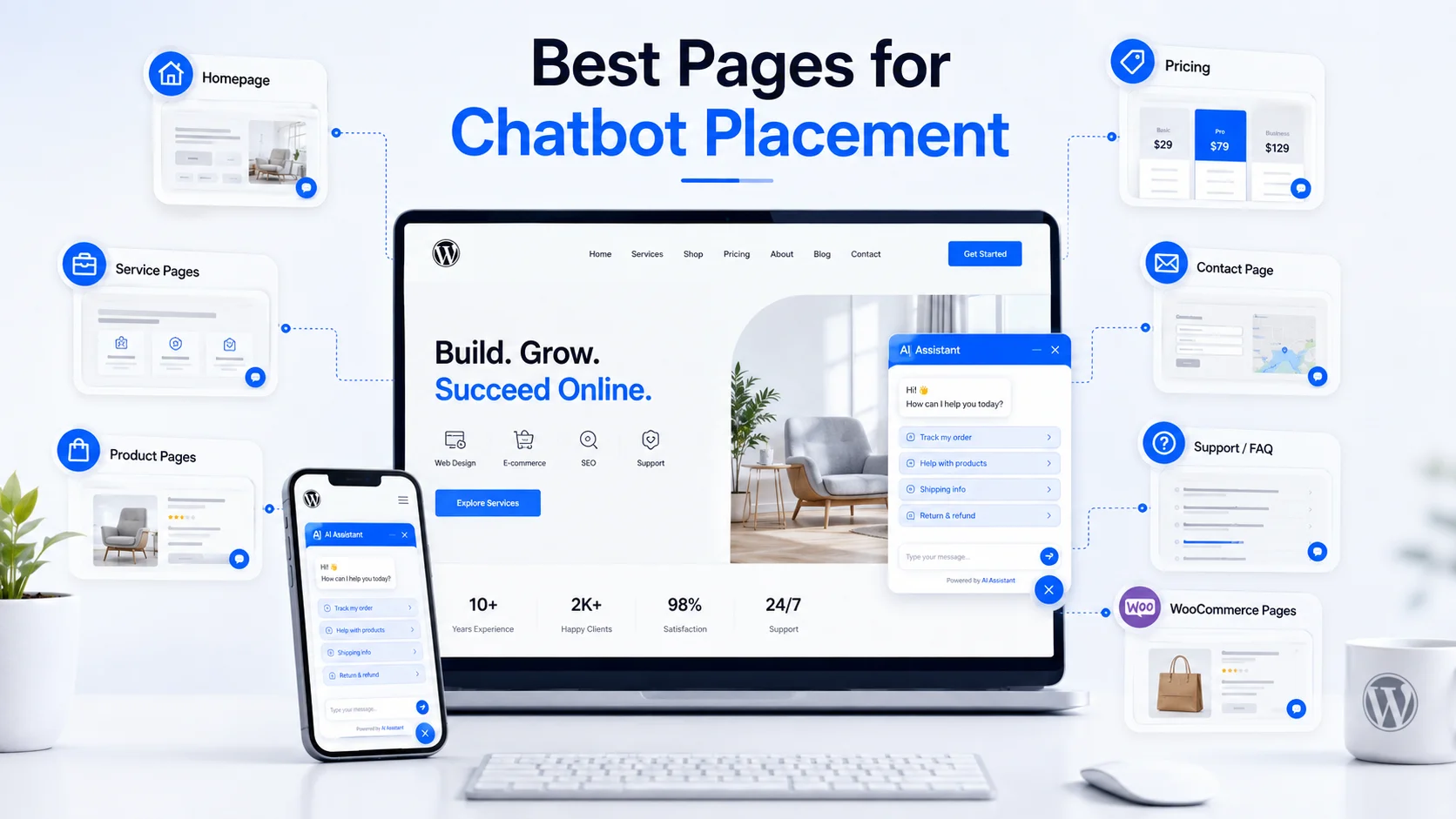
The chatbot can usually appear across the website, but certain pages may generate more useful conversations. These include:
Homepage
Service pages
Product pages
Pricing page
Contact page
FAQ or support pages
WooCommerce product and policy pages
A service-page visitor may need help understanding what is included. A pricing-page visitor may want clarification between plans. A product-page visitor may need compatibility or delivery information. The chatbot should remain accessible without interrupting the visitor or covering important content, particularly on mobile screens.
Human Handoff Still Matters
AI should not handle every WordPress conversation. A visitor may have a complicated complaint, technical issue, billing dispute, unusual refund request or serious sales enquiry. These situations may require a person.
The chatbot should therefore provide a clear way to transfer conversations to the business team. When possible, the handoff should include previous messages and information already collected so the visitor does not need to explain everything again. Automation should reduce unnecessary support work, not make human help harder to access.
Common WordPress Chatbot Mistakes
One mistake is connecting the chatbot to outdated website content. Another is publishing immediately after installation without testing real customer questions. Businesses also sometimes expect the AI to handle actions it has not been integrated to perform. Answering a question about an order is different from accessing the customer's actual order.
Poor placement can also hurt the user experience. A chatbot that covers important buttons or content on mobile may create more problems than it solves. Finally, do not install the chatbot and forget about it. Your website changes. Products change. Prices change. Policies change. The chatbot's knowledge should change as well.
How Agent Best AI Works With WordPress
Agent Best AI supports WordPress as part of its wider website chatbot workflow. Its current platform information says businesses can add Agent Best AI to a WordPress website without a complex technical setup.
The process begins with the website itself. Agent Best AI can learn from product and service pages, categories, features, pricing information, FAQs, help-centre content, policies and other public resources.
Businesses can also add additional knowledge so the AI agent has more context about their products, services and support processes. The chatbot can then be used to answer visitor questions, guide users and support customer-service or sales conversations.
For WooCommerce businesses, Agent Best AI can also work with WordPress product information, FAQs and support content. This gives businesses a way to introduce an AI chatbot without rebuilding their existing WordPress website.
Final Thoughts
A WordPress chatbot builder can turn an existing website into a more interactive customer experience. Instead of forcing visitors to search through multiple pages, the chatbot gives them a direct way to ask questions about products, services, policies or support.
The technical installation may be simple, but successful implementation still requires accurate knowledge, good chatbot instructions, realistic boundaries, proper testing and human handoff.
For WordPress and WooCommerce businesses in 2026, the real value is not simply placing a chatbot icon on the website. It is making the information you already have easier for visitors to access, understand and use.